
BENFEI USB C Hub 5-in-1
4.6Editor score
100W power delivery support
Soft silicone cable design
Multiple USB-A data ports
Compare the top HDMI Hub for PC options featuring dual displays, fast charging, and reliable video output for workstations and home entertainment setups.
Finding the right HDMI Hub for PC can transform your workspace by enabling multiple displays and faster data transfer. Whether you need to connect a monitor, projector, or storage device, a quality hub expands your laptop capabilities efficiently and reliably.
We evaluated ten top-rated models based on video resolution support, power delivery speeds, build quality, and compatibility with Windows and macOS systems. Our comparison highlights key features like HDMI 2.0 bandwidth, USB-C charging pass-through, and durable cable designs for daily professional use.
Each product review below details specific strengths and potential trade-offs to help you match your setup needs with the correct adapter or docking station. Please note that pricing and availability fluctuate frequently, so checking current listings before purchasing is always recommended for the best deal.
4.6Editor score

4.5Editor score

4.4Editor score
This side-by-side table summarizes the critical specifications and connectivity options for each of the ten HDMI hubs selected for review. Use this guide to quickly identify which model offers the specific ports, resolution support, and power requirements your setup needs.





The Anker Laptop Docking Station stands out as the most versatile HDMI hub for PC users needing dual display capabilities. With a rating of 4.5 stars it delivers robust performance for professionals who require both video expansion and reliable connectivity. Its 8-in-1 design covers most essential ports including HDMI Ethernet and USB-A.
We may earn a commission when you buy through this link, at no additional cost to you.
This hub supports dual 4K@30Hz outputs making it ideal for creative work or multitasking environments. The 85W power delivery ensures your laptop stays charged while connected to multiple devices. Additionally the Ethernet port provides a stable network connection which is crucial for remote work or streaming without lag.
While highly capable it is important to note macOS users may experience mirrored displays on external monitors rather than extended mode depending on system settings. The price reflects the premium build quality and feature set but may be steep for budget-conscious buyers looking for basic connectivity.
Buyers should choose this model if they need a full docking experience with dual screens and wired network access. It is particularly recommended for office workers using Windows laptops who want to maximize screen real estate without compromising on charging speed or data transfer rates.
The dual HDMI ports allow for extended desktops which significantly boosts productivity by allowing you to reference documents or dashboards while working.
The 85W pass-through charging ensures that your laptop battery remains stable during intensive tasks even when multiple peripherals are drawing power from the hub.
We may earn a commission when you buy through this link, at no additional cost to you.
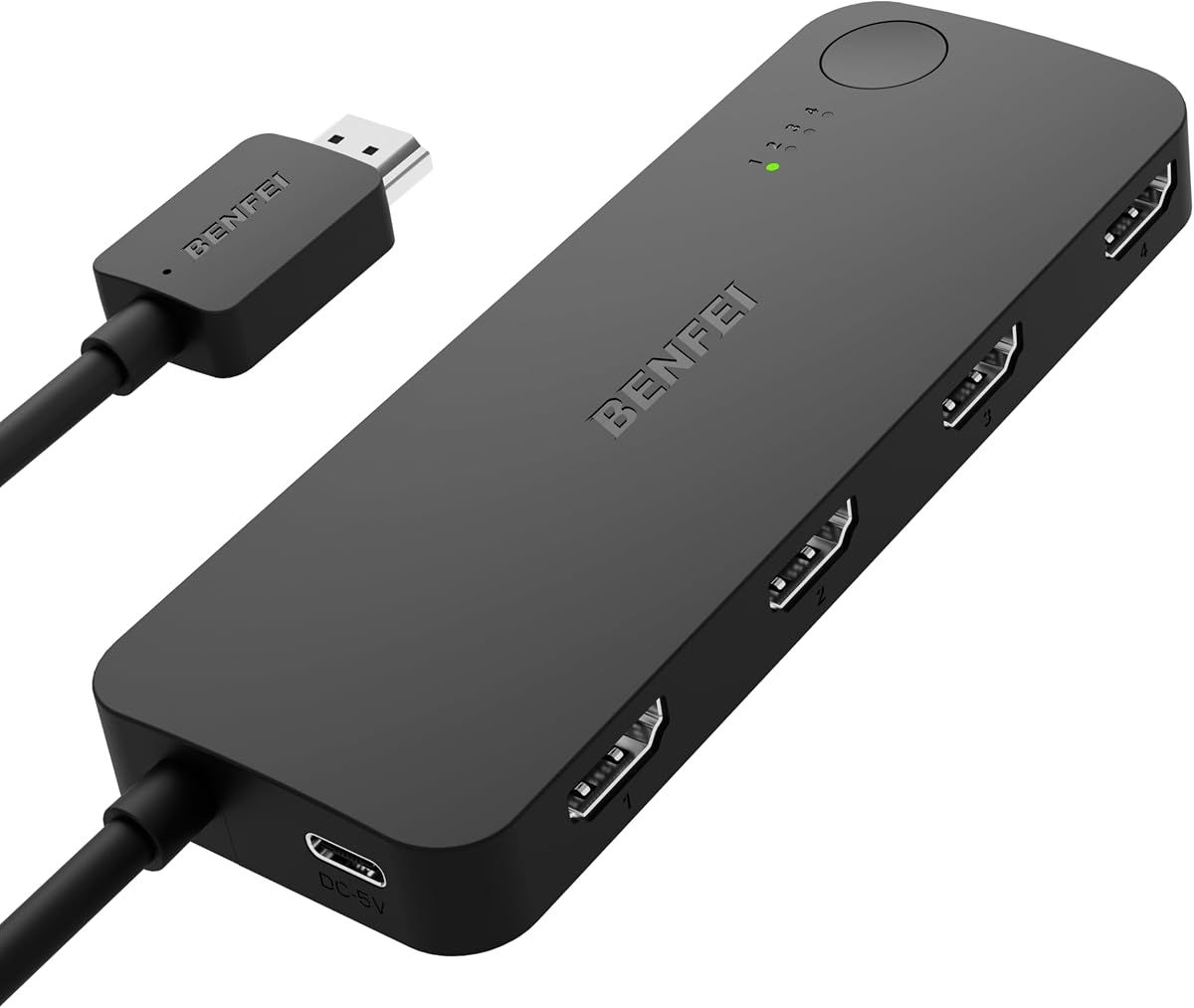
The BENFEI USB C Hub offers exceptional value for users seeking reliable HDMI connectivity without a high price tag. Rated at 4.6 stars it features a durable aluminum case and a unique silicone cable that resists knots. This makes it an excellent choice for students or remote workers on a tight budget.
We may earn a commission when you buy through this link, at no additional cost to you.
Its 4K HDMI output supports 30Hz refresh rates which are sufficient for static content like spreadsheets or coding. The 100W power delivery allows you to charge your laptop fully while using the hub. The design focuses on comfort with a soft cable that is easy to manage in various office or travel environments.
The trade-off lies in the refresh rate limit which might not suit gamers or video editors needing smoother motion. Additionally the USB ports are strictly for data and do not support video output which limits their utility for daisy-chaining displays.
This hub is ideal for anyone who needs a portable and reliable way to extend their laptop into a 4K monitor while keeping devices charged. It balances cost and performance effectively making it a top contender in the budget category for general productivity tasks.
The silicone woven cable is designed to be flexible and durable ensuring it does not tangle or degrade quickly during daily travel and setup changes.
Supporting up to 100W pass-through charging means you can use a high wattage adapter to keep your laptop running even under heavy workloads.
We may earn a commission when you buy through this link, at no additional cost to you.
This adapter is a premium solution designed for users with high-end graphics cards who need dual high refresh rate displays. Rated at 4.4 stars it leverages DisplayPort 1.4 to output dual 4K video at 60Hz. The aluminum housing ensures stability and heat dissipation for continuous professional use.
We may earn a commission when you buy through this link, at no additional cost to you.
It supports both extended and mirror modes allowing for flexible screen arrangements without driver installation. This simplicity is beneficial for IT setups where software conflicts must be minimized. The adapter is compatible with major graphics card brands ensuring wide support across desktop and laptop environments.
The main limitation is the requirement for a DisplayPort 1.4 output on your device which not all laptops possess. If your setup uses standard USB-C video output you will need to verify compatibility before purchasing. This makes it more niche than universal USB-C hubs.
Choose this model if you have a gaming PC or workstation capable of driving dual 4K displays smoothly. It provides a stable and high-performance connection for tasks like video editing or financial analysis where screen real estate and motion clarity are critical requirements.
The ability to drive dual screens at 60Hz ensures smooth scrolling and video playback which reduces eye strain during long sessions of work.
Because it operates without drivers you can rely on consistent performance across operating system updates without worrying about software compatibility issues.
We may earn a commission when you buy through this link, at no additional cost to you.
The Anker USB C Hub 7in1 is designed for users who prioritize high refresh video output alongside standard connectivity. With a rating of 4.5 stars it offers 4K@60Hz HDMI which provides smoother motion than standard 30Hz hubs. This makes it suitable for presentations and entertainment setups.
We may earn a commission when you buy through this link, at no additional cost to you.
It includes dual USB-A 3.0 ports for fast data transfer along with SD and TF card slots for photographers and content creators. The 100W power delivery input ensures that your laptop can be charged at maximum speed while connected to multiple peripherals.
The USB-C data port does not support video output which limits its use for specific daisy-chain setups. Also the compact design might be too small for those who prefer larger docks with dedicated power bricks though it remains efficient for most daily uses.
This hub is best for professionals who need smooth video playback and quick access to memory cards. It is a reliable choice for office presentations or media consumption where visual fidelity is important and a sleek profile is desired for travel.
The 60Hz refresh rate ensures that moving images appear fluid and clear which is essential for video editing previews and interactive presentations.
Having both USB-A and card slots means you can connect a mouse keyboard and camera directly without needing separate adapters for every device.
We may earn a commission when you buy through this link, at no additional cost to you.
This model is optimized for travelers who need essential connectivity without bulk. Rated at 4.4 stars it provides a 4K@30Hz HDMI port and multiple USB data ports. The design is slim and fits easily into a laptop bag for daily commuting or business trips.
We may earn a commission when you buy through this link, at no additional cost to you.
It supports 85W pass-through charging which is sufficient for most ultrabooks. The hub allows you to connect a mouse keyboard and external monitor simultaneously. The simplicity of the design ensures it is easy to set up in hotel rooms or conference centers.
The lack of card readers means it is less suited for photographers who need to download photos on the go. Also the 30Hz HDMI limit is acceptable for static screens but may not be ideal for high motion video work on external displays.
Choose this hub if you need a dependable tool for connecting to hotel TVs or office monitors while on the move. Its balance of portability and functionality makes it a practical choice for sales representatives and remote workers who travel frequently.
The lightweight construction ensures that the hub adds minimal weight to your carry bag making it an unobtrusive addition to your tech kit.
It covers all the basics you need to connect to a monitor and transfer files so you can stay productive anywhere without a cluttered desk.
We may earn a commission when you buy through this link, at no additional cost to you.
This product is a switch rather than a traditional hub designed to let you connect multiple devices to a single TV or monitor. Rated at 4.0 stars it supports 4K@60Hz which is ideal for modern game consoles like PS5 and Xbox. It simplifies your setup by removing cable clutter.
We may earn a commission when you buy through this link, at no additional cost to you.
It features manual button switching allowing you to select between sources like Roku Xbox or laptop easily. The adaptive equalization ensures signal stability over longer HDMI cables up to 30ft. This makes it useful for setups where the console is not near the display.
The limitation is that it is not designed to take a PC USB-C signal and split it but rather to combine HDMI signals into one screen. If you need to expand a laptop display this is not the right tool compared to a USB-C hub.
Use this hub if you have a living room PC or gaming setup where multiple HDMI sources need to access a single high resolution display. It is a cost effective solution for maintaining a clean entertainment area without sacrificing resolution quality.
By allowing four separate devices to share one output you save space on your media console and keep your cable management organized and efficient.
The 4K 60Hz support ensures that high frame rate gaming experiences are preserved without latency or resolution degradation during gameplay.
We may earn a commission when you buy through this link, at no additional cost to you.
The NEWCARE HDMI Switch is a compact solution for connecting multiple sources to a single screen. With a rating of 4.1 stars it supports 4K resolution at 60Hz making it suitable for gaming and media consumption. It includes a 2.6ft HDMI cable which simplifies the initial setup process.
We may earn a commission when you buy through this link, at no additional cost to you.
It features gold plated connectors that protect against corrosion and ensure a stable signal over time. The manual button switching is straightforward and does not require batteries or extra power cords. This simplicity makes it reliable for long term use in home offices.
The lack of a remote control means you must reach the unit to switch inputs which can be inconvenient if it is mounted behind a TV. Also like other switches it is designed for HDMI inputs not for expanding a PC USB-C signal into multiple screens.
This switch is best for users who need a simple way to toggle between a laptop and game console on a monitor. It offers a good balance of performance and convenience for budget friendly media setups.
The gold plated connectors help maintain consistent image quality by reducing interference and ensuring a secure connection between devices.
Including a cable in the box means you can start using the switch immediately without having to buy extra cables which adds value to the purchase.
We may earn a commission when you buy through this link, at no additional cost to you.
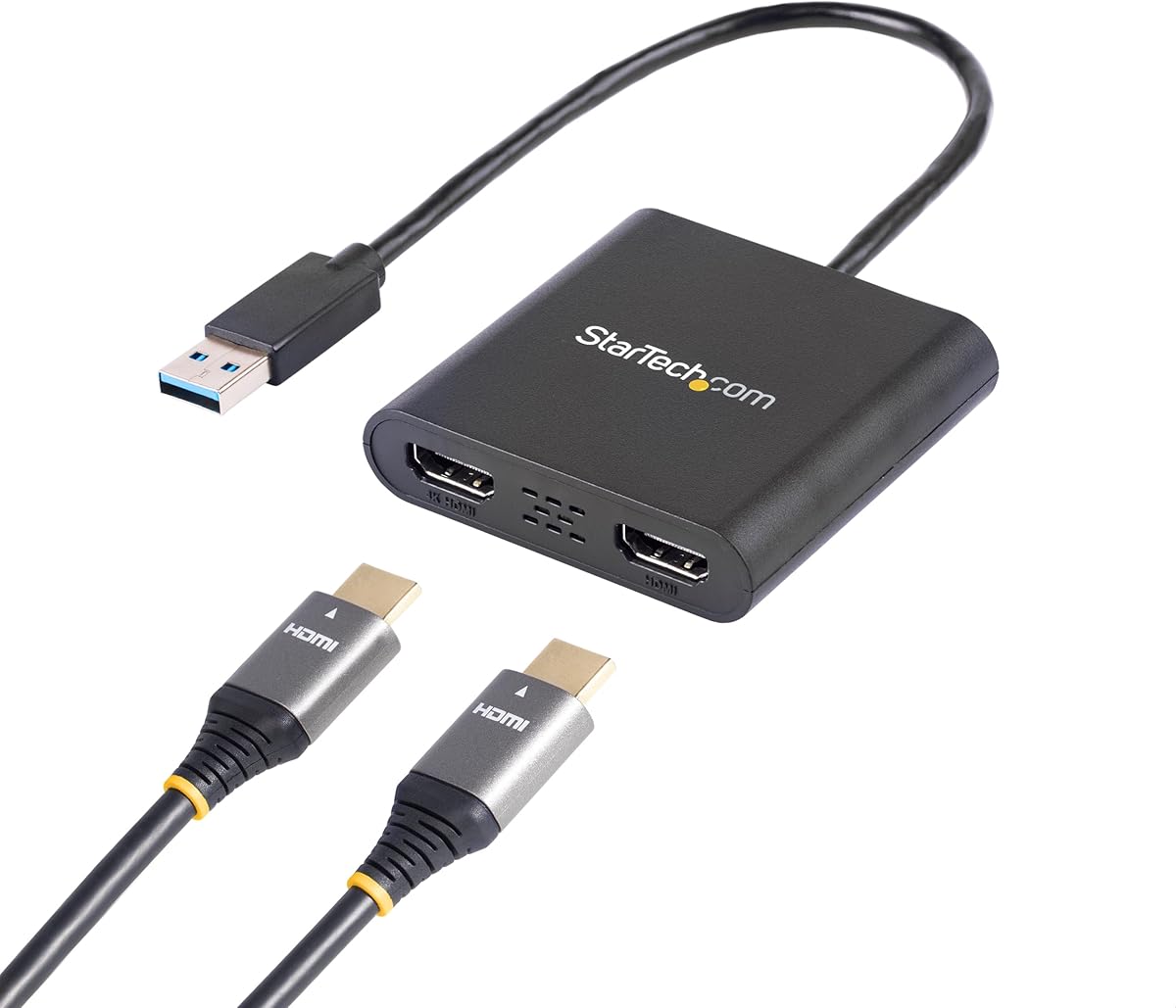
This adapter is designed for older laptops that lack USB-C video capabilities but still need dual screens. With a rating of 4.5 stars it allows you to connect two monitors to a standard USB-A port. It is a practical solution for upgrading older workstations without replacing the entire computer.
We may earn a commission when you buy through this link, at no additional cost to you.
It supports 4K on one screen and 1080p on the other providing enough resolution for most business tasks. The drivers are available for Windows and ensure stable display performance. The build is rugged enough for IT environments with a multi-year warranty.
It is not compatible with Mac or Linux systems which limits its versatility compared to modern USB-C hubs. Also you must install drivers before use which adds a step to the setup process for non technical users.
Use this adapter if you are managing a fleet of older Windows laptops that need more screen space. It is an economical way to extend the life of existing hardware while maintaining productivity standards in a business setting.
By utilizing standard USB-A ports you can connect modern displays to older laptops making it a smart upgrade path for cost constrained offices.
The three year warranty reflects the durable design and offers peace of mind for businesses that need reliable equipment over a long period.
We may earn a commission when you buy through this link, at no additional cost to you.
This hub is notable for its compatibility with older operating systems like Windows 7 which many legacy PCs still run. Rated at 4.0 stars it provides a 1080p HDMI output and several USB ports for peripherals. It is a solid choice for businesses that have not yet upgraded all their machines.
We may earn a commission when you buy through this link, at no additional cost to you.
The USB 3.0 ports support fast data transfer which helps maintain productivity when using external drives. The driver installation is straightforward and stored on the device itself. This allows you to get started quickly without needing internet access to download software.
The resolution is limited to 1080p which is sufficient for basic office work but not for high resolution content. Also the support for Mac is limited compared to USB-C hubs and may not offer all features on newer macOS versions.
Choose this model if you are working with older hardware that needs basic video and data expansion. It is a cost effective tool for maintaining efficiency in environments where upgrading the main computer is not an immediate option.
By supporting Windows 7 and 8 this hub extends the usability of older computers ensuring they can still connect to modern monitors and printers.
The inclusion of USB 3.0 ports ensures that file transfers remain fast even when the video output is lower resolution for standard office tasks.
We may earn a commission when you buy through this link, at no additional cost to you.
The Acer USB C Hub offers a stylish and functional solution for laptop users needing multiple ports. With a rating of 4.5 stars it features a premium aluminum housing that matches modern laptop aesthetics. It provides 4K video at 30Hz along with charging and data ports.
We may earn a commission when you buy through this link, at no additional cost to you.
Its 100W power delivery ensures that your laptop can be charged at full speed while connected. The SD and MicroSD slots are useful for users who need to transfer media directly. The design includes heat dissipation features to keep performance stable under load.
The HDMI limit to 30Hz means it is not ideal for video editing or gaming on external screens. However for business presentations and daily work it delivers sharp images and smooth scrolling. The design is compact and easy to carry in a briefcase.
This hub is best for users who value design and build quality in their accessories. It is suitable for general office work where high refresh rates are not critical and portability is a priority.
The aluminum housing not only looks premium but also helps dissipate heat ensuring that the hub runs cool even when multiple devices are connected.
The presence of both SD and MicroSD slots allows you to access media from a variety of devices without needing extra readers or cables.
We may earn a commission when you buy through this link, at no additional cost to you.
Selecting the right HDMI hub for your PC involves considering several technical factors that impact performance and compatibility. Understanding these elements will help you choose a device that meets your specific needs for video quality data transfer and power.
The most critical factor is the maximum resolution and refresh rate supported by the HDMI port. Ensure the hub supports at least 4K at 30Hz for modern displays and look for 60Hz support if you need smooth motion for video or presentations. Check if the hub supports HDR or deep color if your monitor has these features.
Always verify that your laptop or desktop supports the required video protocol such as DP Alt Mode for USB-C or HDMI 2.0 for older setups to avoid compatibility issues.
If you plan to use the hub while your laptop is in use make sure it supports power delivery pass-through. A hub that can accept 100W charging ensures your laptop will not drain the battery while connected to external devices. Check the power brick requirements since some hubs need external power for stable performance.
Opt for hubs that support at least 65W to 85W pass-through to ensure your system stays charged during moderate workloads without requiring a second charger.
Assess the types of USB ports available and their speed ratings. USB 3.0 or 3.1 ports are essential for fast data transfer with external drives. Look for additional features like card readers or Ethernet if you need to connect to a wired network or transfer photos frequently.
Ensure that the hub has enough ports for your daily peripherals such as mice keyboards and storage drives to avoid needing additional adapters.
Confirm that the hub is compatible with your operating system. Some adapters require specific drivers for Windows and may not work on Linux or macOS. Universal plug-and-play hubs are preferred to ensure you can start using the device immediately after connecting.
Check the product documentation to verify that your specific OS version is supported to avoid installation headaches or non-functional ports.
Physical build quality affects the lifespan of the hub. Look for materials like aluminum which help with heat dissipation and protection against drops. Braided or silicone cables are more durable than standard plastic wires and resist tangling or fraying over time.
Choose hubs with reinforced connectors and solid warranties to ensure the device can withstand daily plugging and unplugging without failure.
If you need two screens choose a hub with two HDMI ports or DisplayPort MST support. Ensure your graphics card can support multiple external displays simultaneously as some integrated GPUs limit the number of connected screens. Check if your OS supports extended mode on the hub.
Verify that the combined resolution of your monitors does not exceed the hub's bandwidth capacity to prevent flickering or dropouts.
Price often reflects the range of features and build quality. Compare hubs based on your specific needs rather than just the cost. A slightly more expensive hub with better power delivery and materials may save you money in the long run by avoiding replacements.
Set a budget that balances essential features like power and video support with optional extras like card readers to maximize value.
To use your HDMI hub correctly connect the USB-C or USB-A connector to your computer first before attaching any external devices. This ensures the hub is recognized by the system and prevents connection errors. Then plug in your HDMI cable and power source if required.
Regularly inspect the ports for dust or debris and clean them gently with a dry cloth or compressed air. Avoid pulling on the cables when unplugging as this can damage the internal wiring. Store the hub in a protective pouch when traveling to prevent scratches or bending.
Ensure your computer is running the latest drivers and operating system updates to maintain compatibility with new hubs. If you experience flickering or connection loss try disconnecting and reconnecting the cables to reset the signal. Follow the manufacturer's temperature guidelines to prevent overheating.
Not all hubs support 4K at 60Hz. Look for models explicitly stating HDMI 2.0 or 60Hz support in their specifications. Many budget hubs are limited to 30Hz which is sufficient for static office work but not for smooth video.
Some hubs draw enough power from your laptop to function without extra cables but others require an external adapter especially when running high resolution video. Check the product details to see if it supports pass-through charging or needs a dedicated power source.
Yes most USB-C hubs work with MacBooks that support Thunderbolt or USB-C video output. However note that some hubs mirror displays on Mac OS rather than extending them. Check compatibility lists for specific models to ensure extended desktop support.
A hub typically adds ports to a computer while a docking station offers a more comprehensive solution with video network and power connections. Docking stations are often larger and include more connectivity options for a permanent desk setup compared to portable hubs.
Flickering can occur if the hub does not provide enough power or if the cable is low quality. Ensure your power adapter is plugged in and that you are using a high speed HDMI cable. Updating drivers may also resolve display stability issues.
Yes if the hub has multiple HDMI ports or supports DisplayPort MST you can connect multiple monitors. Ensure your computer can support multiple external displays and that the resolution settings are configured correctly in your system display settings.
The top picks in this guide offer a range of options for different needs from budget friendly connectivity to premium dual display performance. Whether you need a compact travel solution or a robust workstation dock there is a suitable model for every user.
When making your decision prioritize the features that matter most to your workflow such as video refresh rates power delivery capacity and port variety. Investing in a reliable hub ensures a smooth and efficient experience for daily computing tasks.
Please remember that prices and availability may change so review the current listings before purchasing. Selecting the right HDMI Hub for PC will significantly enhance your setup and productivity in the long run.