Bootable USB Drive for Windows 11 – NO TPM Requirement
4.0Editor score
Affordable 8GB capacity
Handmade and tested in Texas
UEFI and Legacy compatible
This guide compares the top Bootable Windows 11 USB Drive options for installation and recovery, evaluating features, compatibility, and ease of use for users
Finding a reliable Bootable Windows 11 USB Drive is essential for system maintenance and quick recovery when your PC encounters critical errors or crashes unexpectedly.
We evaluated ten leading options based on compatibility, included tools, and user feedback to help you choose the right drive for your specific hardware and needs.
Each selection highlights key features and limitations so you can make an informed decision while keeping in mind that product details and availability may change over time.
4.0Editor score

4.3Editor score

The following table provides a side-by-side overview of all ten products, highlighting their core specifications, compatibility, and unique selling points to simplify your selection process.


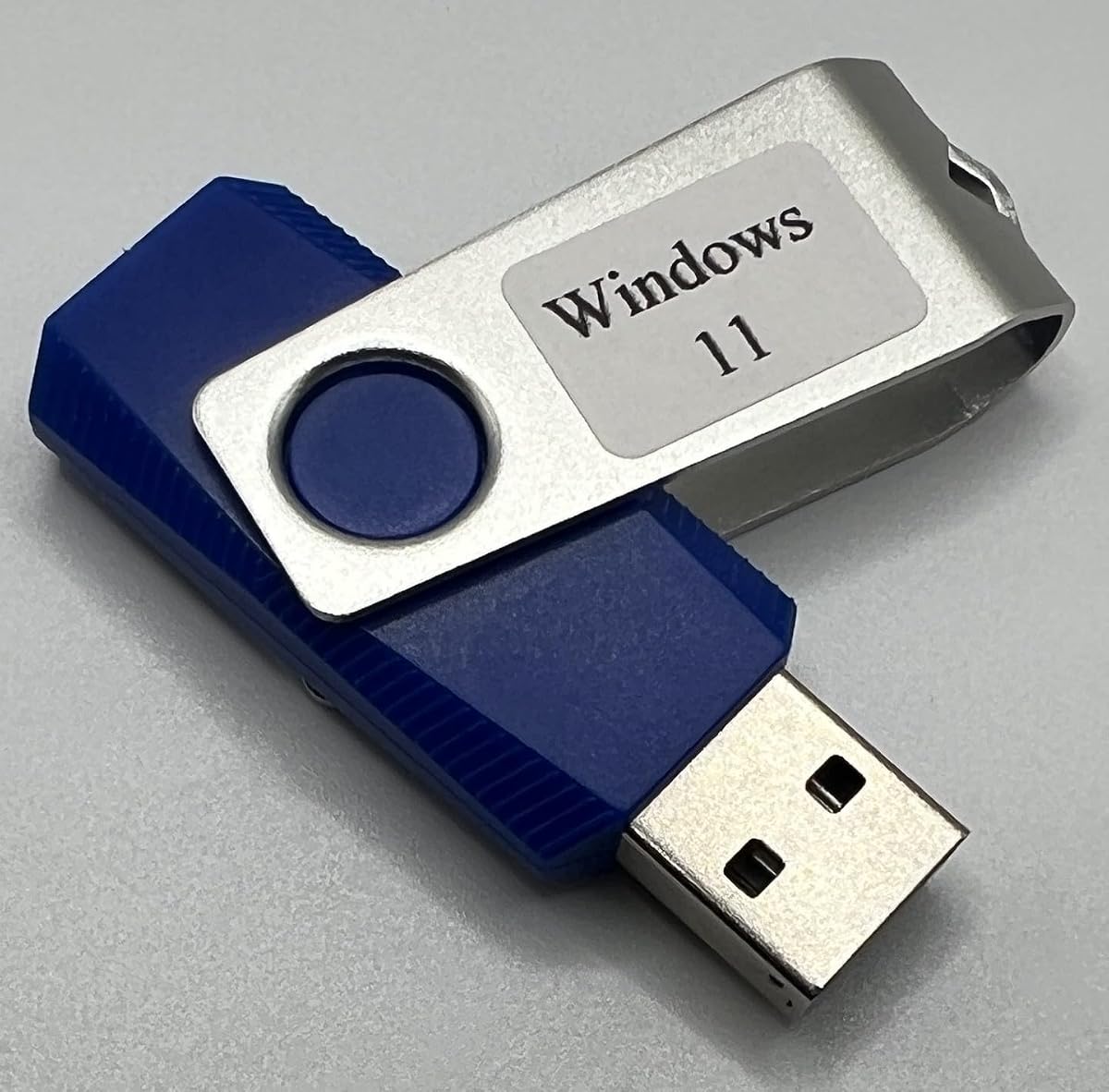


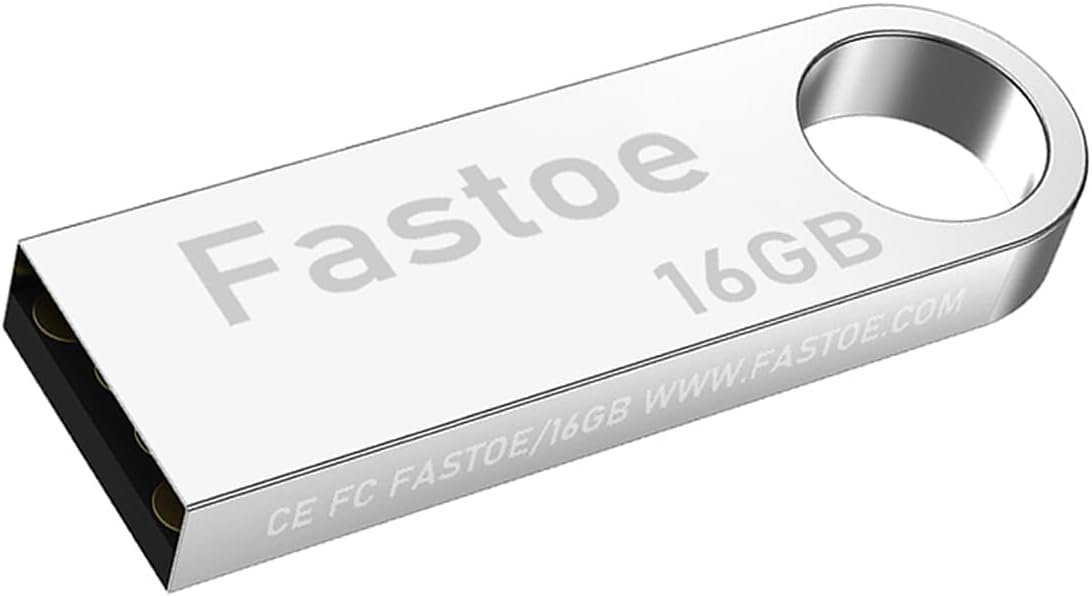
This 64GB drive stands out as a comprehensive solution for installing or repairing Windows 11 and earlier versions without TPM restrictions.
We may earn a commission when you buy through this link, at no additional cost to you.
It includes essential network drivers for WiFi and LAN, ensuring you can connect to the internet immediately after installation on most modern PCs.
While it requires disabling secure boot in the BIOS for some systems, the included video guides make the process accessible even for beginners.
Users seeking a reliable all-in-one tool for maintenance, data recovery, and clean installs will find this drive offers excellent value and versatility.
The drive supports Windows 11, 10, 8.1, and 7 across both UEFI and legacy boot modes for broad hardware compatibility.
Beyond installation, it includes partitioning and data recovery utilities that help you manage your storage effectively.
We may earn a commission when you buy through this link, at no additional cost to you.
For users primarily needing a straightforward installer without extra bloat, this budget-friendly option provides essential functionality at an accessible price.
We may earn a commission when you buy through this link, at no additional cost to you.
It explicitly states that it cannot fix hardware failures, which helps manage expectations before purchase and prevents unnecessary returns.
The family-owned business approach suggests careful quality control, though the smaller capacity means it is best suited for basic installation tasks.
Choose this if you need a cost-effective way to reinstall Windows 11 on a machine that already has functioning hardware and BIOS access.
Priced lower than competitors, this drive focuses strictly on OS installation rather than broader repair utilities.
The product details clearly warn against using it for hardware diagnostics or data recovery scenarios.
We may earn a commission when you buy through this link, at no additional cost to you.
This option strikes a balance between storage capacity and price, making it suitable for users who need more room than eight gigs offers.
We may earn a commission when you buy through this link, at no additional cost to you.
It explicitly supports data backup and access to hard drives before installation, which is critical for preserving important files during repairs.
The inclusion of network drivers ensures smooth internet connectivity post-installation, a common pain point when setting up fresh Windows systems.
Ideal for those who want a versatile tool that handles both installation and backup needs without stepping up to the higher end 64GB models.
Users can access and back up data from the hard drive directly through this tool before proceeding with installation.
The drive is designed to be compatible with all major computer brands and both UEFI and legacy BIOS systems.
We may earn a commission when you buy through this link, at no additional cost to you.
This 64GB drive offers a robust set of utilities including password reset and hardware testing which appeals to advanced users and technicians.
We may earn a commission when you buy through this link, at no additional cost to you.
It covers a wider range of operating systems including Windows 7 making it useful for maintaining older hardware alongside modern machines.
The presence of WinPE tools allows for deeper system diagnostics which helps identify issues beyond simple OS corruption or boot failures.
Choose this if you need a versatile rescue disk that can handle forgotten passwords and hardware checks in addition to standard Windows installations.
The utility suite includes tools to reset Windows passwords which helps regain access without reinstalling the entire system.
Unlike many modern drives, this supports Windows 7 installation for users with older hardware or software requirements.
We may earn a commission when you buy through this link, at no additional cost to you.
This premium tool stands out by supporting Secure Boot enabled systems allowing you to avoid the hassle of changing BIOS settings to install Windows.
We may earn a commission when you buy through this link, at no additional cost to you.
It downloads the latest official Windows directly from Microsoft ensuring you get a clean secure update without outdated or pirated copies.
US based live chat support provides peace of mind for users who may get stuck during the installation process and need human guidance.
Ideal for modern PCs where changing BIOS settings is difficult or risky this drive offers a smooth professional recovery experience.
Unlike competitors, this tool works without disabling Secure Boot, streamlining the installation for modern laptops and desktops.
It prioritizes security by downloading genuine Windows files directly from Microsoft rather than pre-loaded third-party images.
We may earn a commission when you buy through this link, at no additional cost to you.
Designed specifically for Windows 11 this drive provides essential recovery tools for addressing boot errors and performance issues.
We may earn a commission when you buy through this link, at no additional cost to you.
It offers multiple recovery options including system repair and restore which gives users flexibility in how they attempt to fix their PC.
The 16GB capacity is sufficient for the OS and tools but may feel limited if you need to store extra recovery media.
Best for users who specifically face Windows 11 boot issues and want a straightforward tool with clear instructions included in the box.
The drive includes tools to repair startup failures and restore system files without needing a full reinstall.
Optimized for 64-bit architecture, this drive ensures proper booting on most modern 11-compatible devices.
We may earn a commission when you buy through this link, at no additional cost to you.
This package stands out by including a license key which can be redeemed for activation making it a convenient all-in-one installation solution.
We may earn a commission when you buy through this link, at no additional cost to you.
It features high speed performance and includes tools for password recovery and hardware testing which supports broader maintenance needs.
However users should note that secure boot may need to be disabled to access the USB on newer computers which adds a setup step.
If you are looking for a tool that can potentially cover both the installer and the license for a clean install this is a strong candidate.
One license key is included in the package and the USB to assist with activation after a fresh Windows installation.
The drive is marketed for high speed performance which can reduce wait times during large file transfers and OS installs.
We may earn a commission when you buy through this link, at no additional cost to you.
Combining installation media with WinPE repair tools this drive offers a powerful all-in-one solution for system restoration and diagnostics.
We may earn a commission when you buy through this link, at no additional cost to you.
Users can backup important files and troubleshoot startup problems directly from the USB before committing to a full Windows installation.
The inclusion of a video tutorial and printed instructions makes it more accessible for beginners who are new to booting from USB.
Select this if you need a comprehensive drive that handles both recovery and installation tasks across Windows 11 10 and 7 systems.
Boot into the included WinPE utility suite to backup files, fix boot issues, and diagnose common PC problems.
Full instructions and video guides are provided to help you start a PC from the USB drive successfully.
We may earn a commission when you buy through this link, at no additional cost to you.
This drive offers a wide range of tools across multiple versions of Windows making it highly versatile for maintaining older computers.
We may earn a commission when you buy through this link, at no additional cost to you.
It is ready to use out of the box which eliminates the need to download large system files or create bootable media yourself.
For home computers or office workstations where older systems are still in use this tool can refresh or maintain them effectively.
Ideal for technicians or enthusiasts who need a single drive to handle various Windows versions and repair scenarios on demand.
Compatible with Windows 11, 10, 8.1, and 7, this drive provides tools for installation and recovery across generations.
Insert the drive and select the appropriate option from the boot menu to start repair or installation processes immediately.
We may earn a commission when you buy through this link, at no additional cost to you.
Built on a quality 16GB drive this tool provides a simple clean installer for Windows 11 Pro and Home editions.
We may earn a commission when you buy through this link, at no additional cost to you.
It uses professional production tools to ensure the OS version is up to date and free from malware or spyware issues.
Online technical support is included if you encounter problems with booting or installing which helps users who lack technical expertise.
This is a solid choice if you need a reliable straightforward installer for Windows 11 without extra recovery tools or older OS support.
Deployed with the latest official original version of Windows 11 ensuring no viruses or spyware are present.
Compatible with major PC brands including Dell HP Lenovo and Samsung for both laptops and desktops.
We may earn a commission when you buy through this link, at no additional cost to you.
Choosing the right drive depends on your specific repair needs system compatibility and desired features like password reset or backup tools.
Higher capacity drives like 64GB offer more space for multiple tools or large system files while lower capacity drives like 8GB suffice for basic installs.
Consider if you need to store extra backup files or just the operating system to decide on the right storage size for your needs.
Ensure the drive supports both UEFI and Legacy modes as many older computers still rely on Legacy BIOS while newer ones require UEFI.
Checking boot compatibility prevents frustration when the drive fails to load on your specific hardware configuration during installation.
Some drives bypass the Trusted Platform Module requirement allowing installation of Windows 11 on older hardware that does not meet standard specs.
Verify if your system needs a TPM bypass before purchasing to ensure the tool will work for your specific installation scenario.
Some options include password resets data recovery and hardware testing tools which can be vital for maintaining your PC beyond just installation.
Look for drives with WinPE suites or recovery options if you need comprehensive troubleshooting capabilities rather than just a fresh install.
Choose drives that are antivirus scanned and claim to use official ISOs to avoid introducing malware during the installation process.
Always verify that the tool downloads or includes clean OS files to maintain the security of your system after installation.
Access to video tutorials online support or clear printed instructions helps significantly if you are new to booting from USB drives.
Prioritize products with strong support resources to avoid getting stuck during critical repair or installation tasks.
While Windows 11 is the focus some drives also support 10 8.1 or 7 which is useful if you maintain older hardware in your setup.
Check the supported operating systems listed in the product description to ensure it matches the Windows version you need to install.
Some packages include a license key for activation while others do not which affects the total cost and convenience of your purchase.
Decide if you already have a digital license or if you need a physical key included with the USB to activate your Windows installation.
Plug the USB drive into a functioning computer and restart the system accessing the boot menu by pressing a specific key like F12 or ESC during startup.
Navigate the boot menu to select your USB drive as the primary boot device then follow the on-screen instructions to begin the installation or repair process.
Store the drive in a cool dry place away from magnets or strong static electricity to maintain data integrity and ensure it remains readable when needed.
Most drives do not include a Windows license key but allow you to install Windows without one for testing or temporary use. You can use a digital license or purchase a key separately to activate the system once installed.
These drives are designed for PCs and are not compatible with Apple silicon Macs or most Chromebooks which use different operating systems and boot processes. Always verify device compatibility before purchasing.
No these tools are designed for software repairs such as OS installation or boot fixes and cannot repair physical hardware failures. If your hard drive is physically failing you will need to replace it with a new drive.
Many drives require disabling Secure Boot in BIOS settings to function while some newer options support Secure Boot enabled systems. Check the specific product description to confirm if changes are needed for your PC.
Most bootable USB drives are intended for clean installation or repair which may overwrite existing data unless specifically stated to support data backup or preservation. Always back up your files before starting the process.
If your PC does not recognize the drive try using a different USB port or ensure you are booting in the correct mode like UEFI or Legacy. Updating BIOS firmware may also help with broader compatibility issues.
Many products claim to be scanned by antivirus software for safety but you should verify vendor reputation and reviews. Always download or use official OS sources when possible to maintain system security.
The options listed above offer a range of solutions from budget friendly installers to feature rich repair tools suited for various system needs and technical skill levels.
Prioritize drives that match your hardware boot requirements and include the necessary tools such as network drivers or password resets for your specific repair goals.
Remember to verify current product details and availability as specifications and support options may change over time ensuring you get the best tool for your setup.