
Hearvo USB 3.0 HDMI KVM Switch for 2 Computers 1 Monitor
4.0Editor score
Supports 4K 60Hz resolution
Includes wired remote switch option
Features USB 3.0 ports
Discover the top 10 laptop with KVM support solutions for seamless multitasking and efficient workspace management in modern professional environments today.
Finding the right laptop with KVM support can transform your workflow by allowing you to control multiple systems through a single monitor and peripheral set. This capability is essential for professionals who juggle work and personal devices or need to switch between different operating systems frequently without cluttering their desk with excess hardware.
We have carefully evaluated ten top-rated products that offer robust KVM switching capabilities specifically designed for laptops and modern docking setups. Our comparison focuses on video quality, USB data transfer speeds, power delivery options, and overall ease of use to help you make an informed decision for your specific setup needs.
Each selection below highlights key strengths and potential limitations based on verified user feedback and technical specifications available from manufacturers. Please note that product availability and pricing can fluctuate regularly, so we recommend checking current listings before making a final purchase decision for your workspace configuration.
4.0Editor score

4.9Editor score
4.6Editor score
This detailed comparison table outlines the core specifications and features of each selected KVM switch to help you quickly identify the best fit for your laptop setup.


This docking station ranks highly as the top choice for professionals needing robust multitasking capabilities. It offers an impressive 8K 60Hz resolution support and seamless switching between a laptop and a desktop.
We may earn a commission when you buy through this link, at no additional cost to you.
The inclusion of 100W Power Delivery ensures your laptop stays charged without extra cables. Shared Ethernet connectivity allows both systems to maintain network access simultaneously which is crucial for cloud workflows.
While it demands specific USB-C port capabilities for extended displays it delivers high performance. Mac users should note the limitation to mirrored displays rather than extended ones.
This is ideal for power users wanting a single clean workstation that handles video data and power needs efficiently without cluttering desks with multiple dongles.
This device allows you to control up to three displays across two computers instantly using a button or remote switch.
Network connectivity stays active on both systems during switches while the laptop charges through the dedicated USB-C Power Delivery port.
We may earn a commission when you buy through this link, at no additional cost to you.
This KVM switch offers excellent value for those needing a straightforward way to share a monitor and peripherals between two computers. It supports 4K resolution at 60Hz which is great for general productivity.
We may earn a commission when you buy through this link, at no additional cost to you.
The plug and play functionality means no drivers are required making setup quick. The included wired remote adds convenience allowing you to keep the unit hidden while still accessing controls easily.
It lacks advanced features like multi-monitor support or fast charging but delivers reliability on a budget. Users appreciate the stability and ease of use for basic office tasks.
Buyers looking for a cost-effective solution to reduce cable clutter will find this switch a practical choice for dual PC setups.
This switch lets you share one monitor keyboard and mouse between two computers without needing to swap cables manually.
The unit does not require an external power supply and comes with all necessary cables for immediate use.
We may earn a commission when you buy through this link, at no additional cost to you.
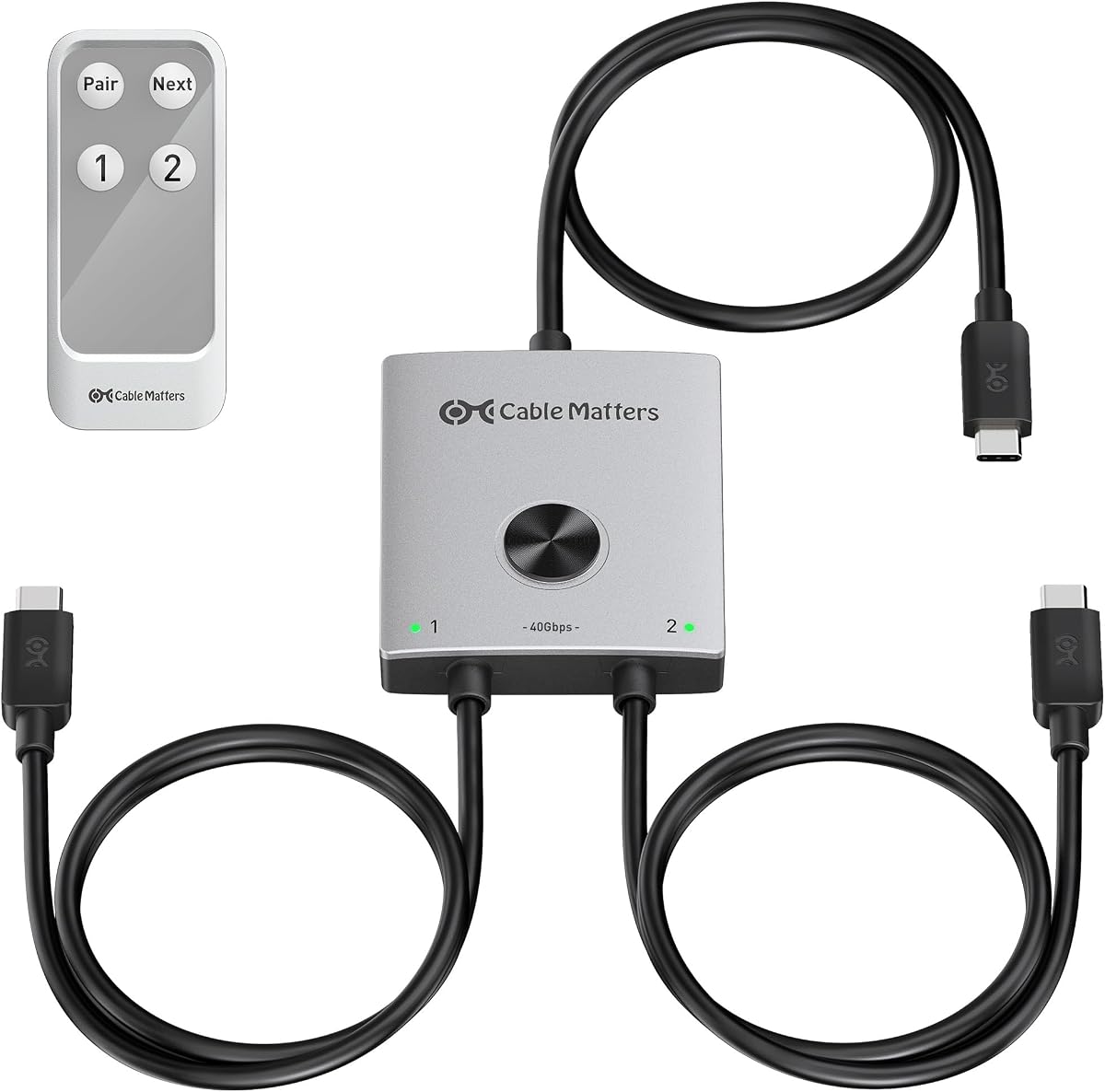
This premium switch is designed for users with high-end Thunderbolt or USB4 docks who want to share the entire dock between two laptops. It supports data rates up to 40Gbps ensuring fast transfers and video performance.
We may earn a commission when you buy through this link, at no additional cost to you.
The ability to pass through 140W charging means laptops can draw power directly through the switch when active. The RF remote allows switching without needing direct line of sight which is convenient.
It is specifically built for docks with detachable host cables so checking compatibility is crucial before purchase. The high bandwidth ensures video conferencing and storage devices perform smoothly.
Prospective buyers should verify their dock compatibility as this is a specialized solution for advanced workstation setups rather than basic HDMI connections.
This switch allows you to share a single high-performance Thunderbolt dock between two laptops seamlessly.
Data transfers and charging speeds are maximized with support for 40Gbps bandwidth and up to 140W power delivery.
We may earn a commission when you buy through this link, at no additional cost to you.
This unit stands out for its ability to manage four computers connected to two monitors with flexible video input options. It supports a mix of HDMI and DisplayPort inputs making it versatile for mixed hardware setups.
We may earn a commission when you buy through this link, at no additional cost to you.
The dual 4K 60Hz support ensures sharp visuals for productivity tasks. Charging is handled via a 100W PD port which simplifies laptop charging during use.
Setup requires connecting multiple video and USB cables per computer which can be tedious. Users should ensure all ports support DP alt mode for the best performance.
It is best suited for environments with multiple systems needing access to a dual monitor station without dedicated workstations for each machine.
You can connect four different computers using various video combinations to share two monitors efficiently.
The switch supports dual 4K outputs ensuring clear visuals across both screens for multitasking workflows.
We may earn a commission when you buy through this link, at no additional cost to you.
This KVM switch enables two laptops to share three external displays which is rare for consumer grade solutions. It uses MST technology to extend screens across laptops with compatible ports.
We may earn a commission when you buy through this link, at no additional cost to you.
It features 10Gbps USB ports for fast peripheral data and a 100W PD port for charging. The setup is plug and play with no software required for basic functions.
Mac users will find the display mode limited to mirror mode instead of extended windows. Additionally the laptop must have an 11th gen CPU or higher for full triple display support.
For Windows users needing extensive screen real estate this device offers a robust way to expand workspace across multiple laptops and monitors.
Expand a single laptop screen to three external monitors for increased workspace and multitasking capability.
Connect storage and peripherals at 10Gbps while keeping laptops charged through the dedicated USB-C PD port.
We may earn a commission when you buy through this link, at no additional cost to you.
This docking station provides high-resolution video capabilities up to 8K for desktops and 4K for laptops. It supports triple monitor setups which is ideal for creative professionals needing screen space.
We may earn a commission when you buy through this link, at no additional cost to you.
The built-in SD card reader and multiple USB ports reduce the need for extra hubs. Network connectivity is shared so both systems remain online during switching.
Compatibility depends on the laptop supporting USB-C video output. Users should check specs before buying to ensure extended display modes work as expected.
It offers a complete solution for those wanting to minimize desk clutter while maintaining high performance video and data transfer rates.
Achieve stunning detail with support for 8K resolution on desktop PCs and 4K on laptops.
Integrated card readers and USB ports replace the need for separate hubs and adapters.
We may earn a commission when you buy through this link, at no additional cost to you.
This dock is tailored for users who alternate between two laptops daily. It supports dual 4K video output and allows both laptops to be charged at 60W simultaneously.
We may earn a commission when you buy through this link, at no additional cost to you.
Switching happens quickly in just 2-3 seconds thanks to EDID emulation. Ethernet connectivity is shared so internet access remains stable during transitions.
The 11-in-1 connectivity includes multiple USB ports and card slots. Mac users should note that extended displays are not supported for this device.
It simplifies desk setups for professionals managing work and personal laptops without needing separate docks for each device.
Both laptops can receive power through the USB-C ports allowing you to work without separate chargers.
Seamlessly switch between laptops with minimal delay to maintain productivity during meetings or tasks.
We may earn a commission when you buy through this link, at no additional cost to you.
This docking station connects two laptops to two monitors with support for 4K resolutions. It features an 11-in-1 design providing ample connectivity for peripherals and storage.
We may earn a commission when you buy through this link, at no additional cost to you.
A dedicated charging port supports 100W power delivery which helps keep laptops charged during use. Shared Ethernet ensures both systems have internet access when active.
Setup requires plugging the original laptop adapter into the charging port. Mac users should check compatibility as extended displays are not supported due to OS limits.
It is a solid choice for those needing a reliable mid-range solution to manage dual laptop workflows efficiently.
Connect two external monitors to each laptop for an expanded workspace and better multitasking.
Consolidate data connections and power supply into a single hub to reduce desk clutter.
We may earn a commission when you buy through this link, at no additional cost to you.
This unit focuses on DisplayPort inputs supporting up to 8K resolution which is excellent for high-end monitors. It allows sharing a single monitor between two computers with quick switching.
We may earn a commission when you buy through this link, at no additional cost to you.
The wireless controller adds convenience for controlling the switch without reaching for the device. It includes 4 USB 3.0 ports for peripherals and data transfer.
An external power supply is required to ensure stable operation with high power devices. DP cables are not included so plan for those costs when purchasing.
It suits users needing high resolution output and wireless control options for a single monitor setup.
Supports 8K resolution at 60Hz ensuring sharp visuals for detailed graphics work and gaming.
Switch between computers effortlessly using the included wireless remote controller.
We may earn a commission when you buy through this link, at no additional cost to you.
This compact switch is designed for users needing to share a single monitor or dock between two computers. It supports data speeds up to 20Gbps and power delivery up to 140W.
We may earn a commission when you buy through this link, at no additional cost to you.
Video support extends to 8K at 30Hz making it suitable for high resolution displays. The unit is portable and can be used on the go without much setup.
All devices must support DP alt mode for video and data which limits some older hardware. The power supply is not included so check your adapter requirements.
Ideal for travelers or professionals who need a reliable switch for high performance docks and monitors.
Transfer files quickly with 20Gbps data throughput ensuring smooth operation of external storage.
Charges laptops and devices via the USB-C port supporting up to 140W pass through power.
We may earn a commission when you buy through this link, at no additional cost to you.
Selecting the right KVM switch requires understanding your specific display and connection needs to ensure seamless integration with your laptop workflow.
Ensure the switch supports the resolution and refresh rate of your monitors to avoid bottlenecks. High-end models support 4K at 60Hz or 8K which is vital for clarity.
Look for switches that match your monitor specs to prevent display issues or reduced refresh rates during use.
USB 3.0 or USB 3.1 Gen 2 ports offer faster data transfer for peripherals and storage devices. High speed transfers are essential for external drives and large files.
Choose switches with USB 3.0 or higher ports to ensure your peripherals perform efficiently without lag.
Many modern KVMs include USB-C Power Delivery to charge laptops while in use. This reduces cable clutter by allowing one connection for video and power.
Check the wattage rating to ensure it meets your laptop charging requirements to avoid slow charging or battery drain.
Decide if you need to share one monitor or multiple screens across two or four computers. Some switches support triple displays which expands workspace significantly.
Verify the input and output counts match your setup to avoid connectivity limitations or wasted ports.
Most devices offer buttons on the unit or a wired remote for easy control. Some premium models even include wireless remotes for better convenience.
Select a mechanism that keeps your desk tidy and allows quick access during active work sessions.
Check that the switch works with your operating system especially if using macOS as some features like MST may be limited. Windows and Linux generally have broader support.
Ensure your laptop ports support DP alt mode if using USB-C video to avoid compatibility issues.
Some KVM docking stations share a single Ethernet connection between multiple computers. This keeps both systems online during switches for uninterrupted cloud access.
Consider this feature if you need both systems to maintain network access without separate cables.
Look for durable materials and included accessories like cables to ensure longevity. Warranty terms vary so check what is covered for peace of mind.
Choose a brand with good support to handle any technical issues that may arise during use.
Connect the KVM switch between your computers and monitor using the appropriate video cables. Ensure all USB peripherals are plugged into the switch rather than directly into the computer for shared access.
Use the provided remote or panel button to switch between active computers. The system should recognize peripherals automatically without requiring driver installation in most cases.
Keep the device in a well ventilated area to prevent overheating. Clean dust regularly with a soft dry cloth to maintain port integrity and performance.
Yes many KVM switches work with MacBooks but some features like multi-monitor support may be limited due to macOS restrictions. Models that support Thunderbolt docking stations are generally the best choice for Mac users.
Many modern KVM docking stations include USB-C Power Delivery ports that allow you to charge laptops while using the device. Always check the wattage rating to ensure it meets your laptop needs.
HDMI switches are common for general use while DisplayPort options often support higher refresh rates and resolutions. Choose the type that matches your monitor input and performance requirements.
Most KVM switches are plug and play and do not require driver installation. They connect via USB and HDMI which are standard operating system supported protocols.
Yes sharing a keyboard and mouse is a primary function of any KVM switch. The device routes input signals to the active computer allowing full control without physical swapping.
Some advanced KVM docking stations allow Ethernet connections to be shared so both systems stay online during switches. Basic switches might not offer network sharing features.
High-end models support up to 144Hz or higher which is suitable for gaming. Always verify the switch supports your monitor refresh rate to avoid input lag or visual issues.
Most packages include necessary cables but check product details to confirm. Using the correct DP or HDMI cables ensures the best resolution and stability.
We have highlighted the top options for KVM switches ranging from budget-friendly HDMI solutions to high performance Thunderbolt docking stations. Each product offers unique strengths depending on your monitor count and computer types.
Prioritize features like Power Delivery and Ethernet sharing if you need to reduce desk clutter while maintaining connectivity. Also consider display resolution support to ensure your workflow remains smooth.
Remember to check current pricing and availability before purchasing as these details can change regularly. We hope this guide helps you streamline your workspace effectively.